 Consoles
 Pre-order
 PlayStation 5
 Nintendo Switch 2
 Xbox
Xbox Collector’s Edition
 Trading Cards
 Used products


 Phones
 Tablets
 E-Readers
 Accessories











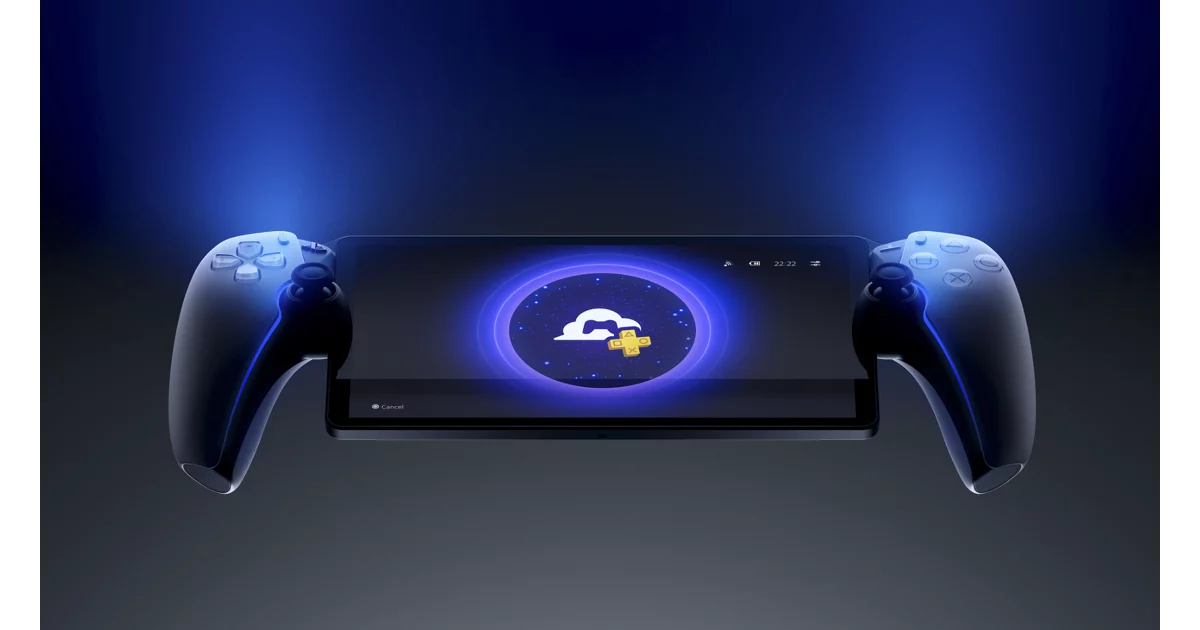
Sony continues to expand the PlayStation ecosystem, making the gaming experience even more flexible and accessible. The company has recently introduced a new feature for PlayStation Portal—support for a streaming service that lets you play games without downloading them directly to the console. Owners can now enjoy their favorite titles via the cloud, streaming from PlayStation’s servers rather than only from their own PS5. This opens up new possibilities for gamers who want to play anytime and anywhere, provided they have a stable internet connection.
Requirements for cloud streaming for PS5 games on PS Portal
– A PlayStation Portal™ Remote Player
– An account for PlayStation. Please note, cloud streaming for PS5 games on PS Portal is not available for child accounts.
– An active PlayStation Plus Premium membership. To stream games, you need a subscription for PlayStation Plus Premium. Please check whether cloud streaming for PS5 games on PS Portal is supported in your country or region.
– Access to broadband internet
– Minimum upload and download speeds for streaming:
5Mbps minimum to establish a cloud streaming session
7 Mbps minimum to stream at 720p
13 Mbps minimum to stream at 1080p.
How to play a streaming game on PS Portal
1. Select the Cloud Streaming tab from the options available in the top left of the device Home screen.
2. Select the game you want to play from either Cloud Streaming with PlayStation Plus Premium, Streaming Games in PlayStation Plus, or an eligible game from Your Library*.
3. Select Stream. The game starts when connected.
How to adjust maximum resolution for streaming
While streaming a game, the game’s video resolution automatically adjusts depending on the quality of your internet connection. By following the steps below, you can adjust the highest resolution it can be set to when automatically adjusted.
1. Open the quick menu while streaming a game.
2. Select Max Resolution. To apply a new resolution, you need to restart the streaming game. Below are the available options:
-1080p. Select this resolution if you have a stable internet connection (minimum 13 Mbps).
-720p. Select this resolution if your connection isn’t fast enough, or you’re worried about stability while streaming (minimum 7 Mbps).
How to close a streaming game
1. Open the quick menu.
2. Select Close Game.
When streaming games, if you sign in to your PS Portal with the same account that you use for your PS5 console, you can keep playing from where you left off on your console. If you’re inactive for a while, your streaming game closes. Remember to save your progress.
What games are available to play with cloud streaming on PS Portal?
You can play select PS5 games available with PlayStation Plus Premium from the PlayStation Plus Game Catalog and Classics Catalog, and select digital PS5 games from Your Library* available from PlayStation™Store. Availability of games will vary by country/region. To check out what games you can stream, see the Cloud Streaming section or use the Search tab on your PS Portal.
How to adjust cloud streaming accessibility settings on PS Portal
1. Select Settings from the quick menu.
2. Select Cloud Streaming > Accessibility Settings for Cloud Streaming. Here you can choose the text size and configure screen reader settings for certain screens.
How to troubleshoot issues with cloud streaming on PS Portal
1. Cloud streaming on PS Portal not launching/not available
-Make sure that your PS Portal is updated to the latest version of system software.
-Check that you have an active PlayStation Plus Premium subscription.
-Check that you are playing on an adult account. Cloud streaming isn’t available for child accounts.
2. Troubleshoot cloud streaming issues
If you’re having internet connectivity or streaming issues you can check your network quality and status on your PS Portal via Troubleshooting in the Quick Menu. Adjust maximum resolution
For more details please check official PlayStation page